| Feature | Obsidian | Microsoft OneNote | Joplin | Evernote |
|---|---|---|---|---|
| Free Storage | Unlimited local (device storage only) | 5GB (OneDrive free tier) | Unlimited local | Limited (60MB/month uploads on free) |
| Bring Your Own | Yes (manual sync via Dropbox, iCloud, etc.) | Partial (integrates with OneDrive) | Yes (manual via any cloud service) | No (proprietary cloud) |
| Web Clipper | Yes (official browser extension) | Yes (excellent extension) | Yes (browser extension) | Yes (top-tier with annotations) |
| Web App | No | Yes | No | Yes |
| Mac App | Yes | Yes | Yes | Yes |
| Windows App | Yes | Yes | Yes | Yes |
| Android App | Yes | Yes | Yes | Yes |
| iOS App | Yes | Yes | Yes | Yes |
| OCR | Via plugins | Yes (built-in, strong) | No (via plugins possible) | Yes (built-in, advanced) |
| Sketching Supported | Via plugins (e.g., Canvas, Excalidraw) | Yes (native inking/drawing) | Limited (attachments only) | Yes (basic) |
| Email Forwarding | Via plugins | No | Yes | Yes |
| Scanning | Via mobile/plugins | Yes (built-in document scan) | Via mobile | Yes (built-in) |
| PDF Annotation | Yes (via plugins like PDF++) | Yes (native) | Limited (view/export) | Yes (paid plans) |
| Geolocation | Via plugins | No | Limited (metadata import) | Yes |
| Audio Note-Taking | Yes (record/embed) | Yes (built-in recording) | Yes (attachments) | Yes |
| Collaboration Tools | No (single-user focus) | Yes (real-time sharing/co-authoring) | Limited (Joplin Cloud paid) | Yes (sharing, Spaces for teams) |
Taking notes is really about capturing your unique way of thinking in words, and since no two minds work exactly the same, a great note-taking app needs to bend to your style. That’s where Obsidian shines—it’s named after that sharp, glassy rock formed from fast-cooling lava, and it lives up to the name with incredible flexibility. In our testing, it stands out for letting you organize notes in multiple ways, offering tons of customization, and supporting a huge library of plugins and themes.
We especially appreciate that the core app is completely free for personal or work use, with optional paid add-ons if you want to chip in and support the team. That said, be prepared to invest some time upfront to tweak it just right for your workflow. It’s also strictly a solo tool—no built-in collaboration features.
Obsidian is absolutely worth exploring if you’re after something powerful and adaptable, though for most people, the simpler and more straightforward Joplin or the richly featured Microsoft OneNote still take our Editors’ Choice awards in this category.
Pricing: Free, With a Few Paid Add-Ons
Obsidian is entirely free for personal and commercial use alike, with notes stored locally on your device—so your storage capacity is essentially unlimited, bounded only by your hardware. There’s no built-in cloud syncing in the core app, but you can achieve reliable multi-device access for free by manually syncing your vault through services like Dropbox, Google Drive, iCloud, or Syncthing.

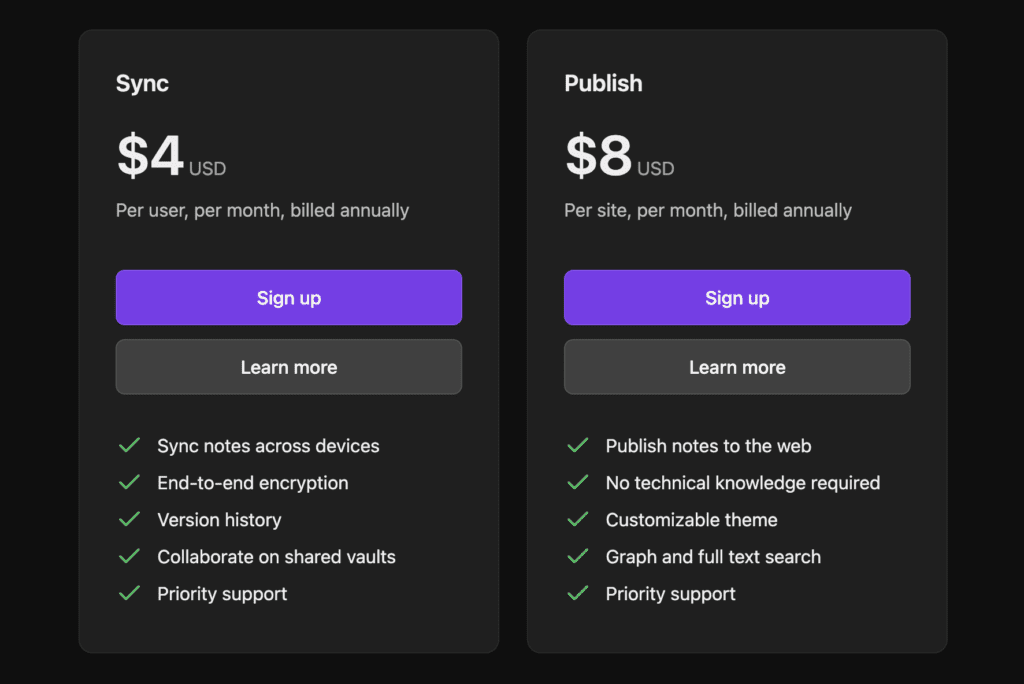
For those wanting a more seamless experience, Obsidian provides optional paid add-ons: Sync starts at $4 per user per month (billed annually) for end-to-end encrypted cross-device syncing, version history, and more advanced features in higher tiers; Publish runs $8 per site per month (billed annually) for effortlessly sharing selected notes online with custom domains and themes. Individuals can also grab a one-time Catalyst license starting at $25 for early beta access and insider perks as a way to back the developers.
By contrast, Microsoft OneNote is completely free, storing notes in OneDrive with 5GB of included storage on a basic Microsoft account. For heavier users, a paid Microsoft 365 subscription (around $100 per year for Personal) bumps that to 1TB while bundling full desktop versions of Word, Excel, PowerPoint, and other apps—often making it a stronger bundle if you value automatic syncing without extra setup.
Joplin mirrors Obsidian’s approach as a free, open-source tool with unlimited local storage and easy manual syncing via third-party clouds. Evernote’s free plan remains heavily capped (limited notes and devices), with paid tiers now starting significantly higher, typically $15 per month or more for meaningful usage.
If you’re fine sticking to one main device or managing your own sync, Obsidian’s robust free core delivers exceptional value without compromises. That said, for zero-effort, cost-free cloud syncing on everything, OneNote continues to stand out as the smoother, more accessible pick for everyday users.
Platforms and Getting Started with Obsidian
Obsidian runs on pretty much every major platform out there. You’ll find native desktop apps for Windows, macOS, and Linux. The developers don’t list strict official system requirements, but since it’s built on Electron (the same tech behind apps like Chrome and VS Code), it generally follows similar guidelines. That means it should work smoothly on Windows 10 or newer, macOS 12 (Monterey) or later, and common Linux distros like Ubuntu 18.04+, Debian 10+, or openSUSE 15.5+.
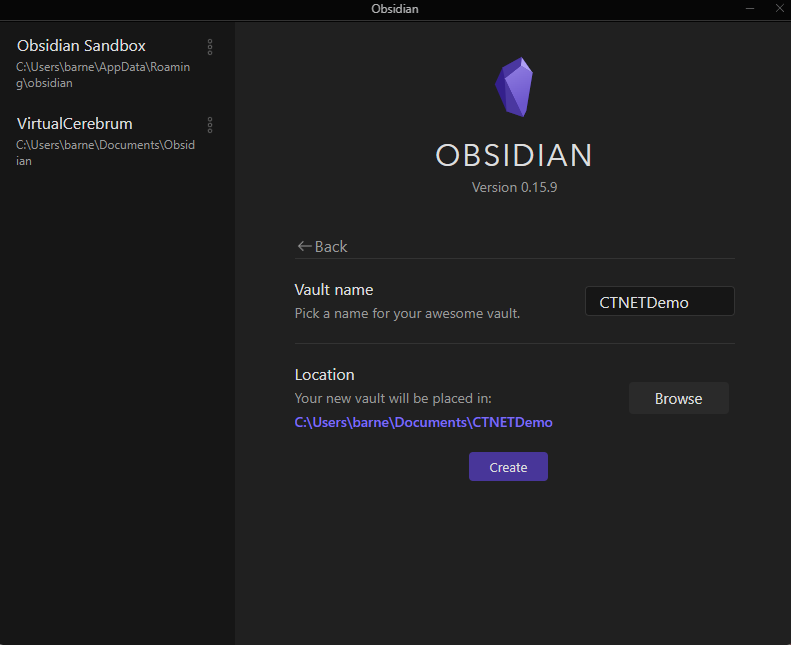
On mobile, there are full-featured apps for Android (requiring version 5.1 or higher) and iOS (14.5 or above). These aren’t stripped-down versions—they pack in nearly all the desktop capabilities, including plugin support.
One of the best things about Obsidian? No accounts, no sign-ups, no credit card needed. Just head to the website, download the app for your device, and you’re good to go.
When you first open it, you’ll create a “vault”—that’s basically just a regular folder on your device where all your notes live. From there, you can jump right in and start creating notes, which are simple Markdown text files. It’s easy to drag and drop images or other attachments, and you can even embed videos or PDFs directly into your notes for quick reference. Everything stays local and under your control, which feels refreshing in a world full of cloud-locked apps.
Formatting in Obsidian: It’s Markdown All the Way
Obsidian sticks strictly to Markdown for formatting your notes—no WYSIWYG editor, no fancy toolbar with bold/italic buttons. Markdown is that simple, lightweight syntax where you wrap text in symbols to style it: single asterisks for italics, double for bold, hashes for # headings, and so on.
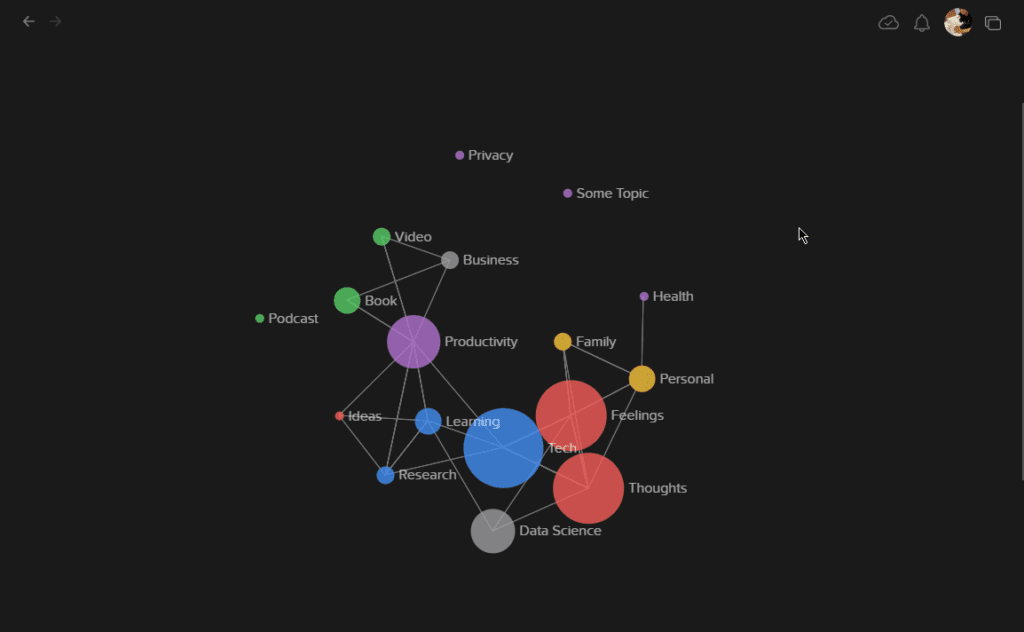
If you’ve ever made text bold in Discord, Reddit, or WhatsApp by surrounding it with asterisks, congratulations—you already know the basics of Markdown. It’s everywhere these days, from chat apps to blogging platforms and even GitHub READMEs.
For someone new to it, there’s definitely a short adjustment period. You have to remember the symbols instead of clicking icons, which can feel a bit retro at first. But once it clicks, it’s incredibly fast and consistent—no more fighting with weird auto-formatting or copy-paste glitches that break styles.
I’ve been writing almost everything in Markdown since around 2011, and I absolutely love it. It keeps things clean, portable, and distraction-free. That said, if you really dislike typing symbols and prefer a rich-text experience like in Notion or Word, Obsidian won’t change your mind—it’s unapologetically Markdown-only.
The good news? Obsidian softens the edges with a live preview mode turned on by default: as you type the raw syntax, you see the formatted result right next to or below it. It also supports standard keyboard shortcuts (like Cmd/Ctrl + B for bold), so you don’t always have to type the asterisks manually. These little touches make the transition a lot smoother than using a bare-bones text editor.
Organizing Your Notes in Obsidian: Tons of Flexible Options
Obsidian gives you a bunch of straightforward ways to keep your notes in order. There’s a handy sidebar on the left that shows all your files and folders, just like a regular file explorer. The cool part? You can manage everything outside the app too—using Finder on Mac, File Explorer on Windows, or whatever file browser you like—and Obsidian updates in real time to reflect those changes.
Just type [[ followed by a few letters, and it pops up a dropdown with matching notes. Pick one to link to it, or type a brand-new title to create (and instantly link) a fresh note. Click any link, and boom—you’re there. This builds a network of ideas over time, like your own personal wiki, where everything connects naturally.
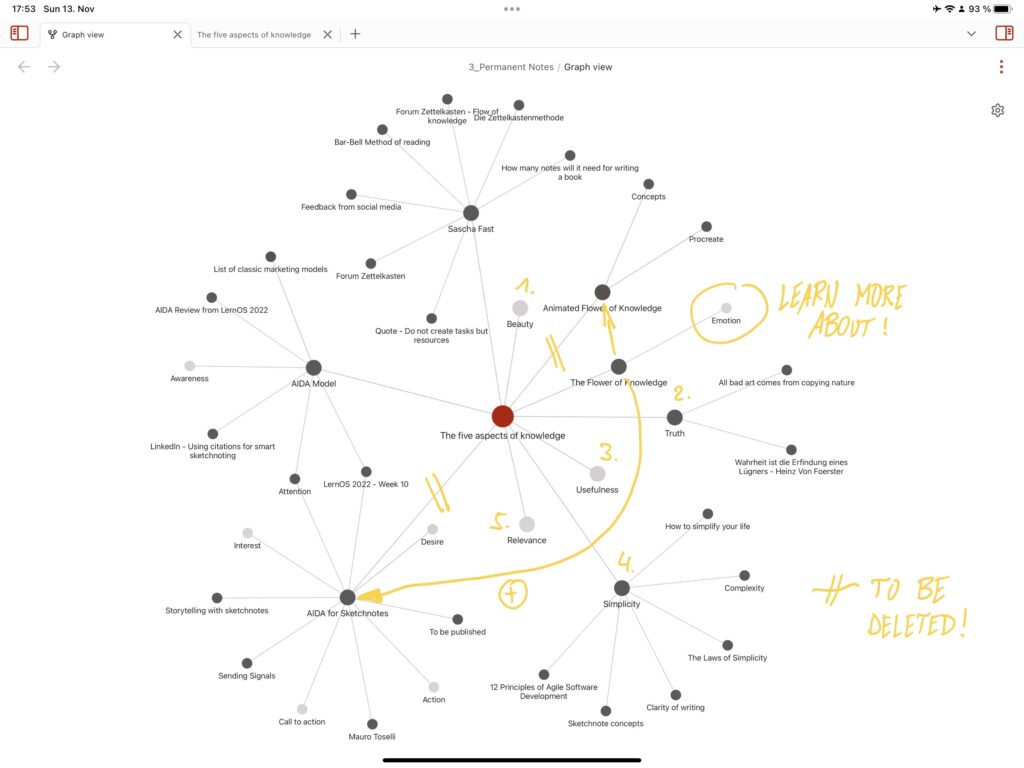
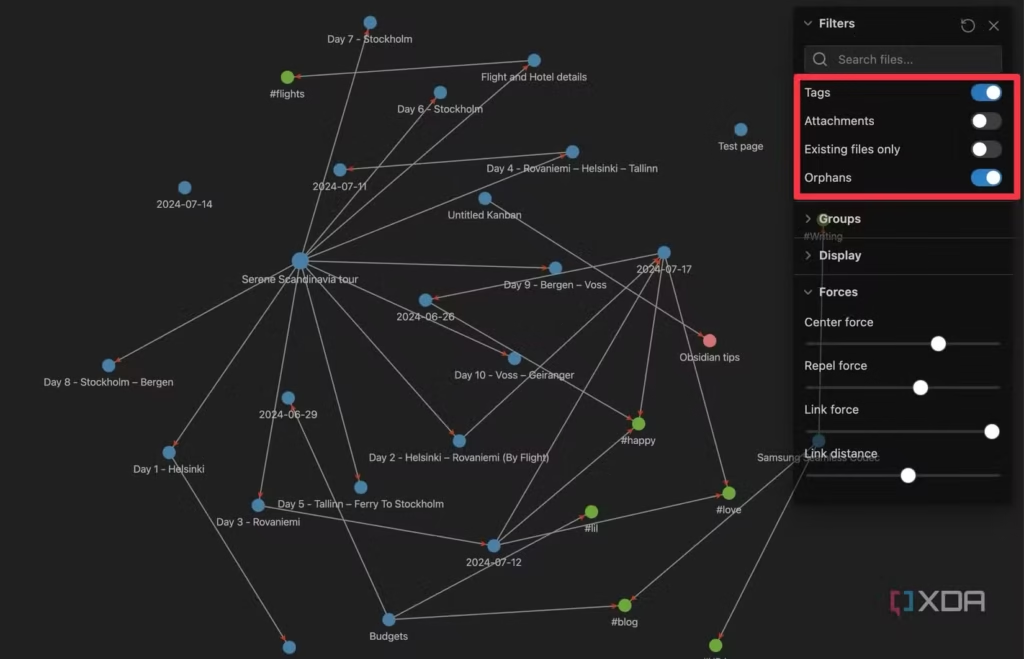
And then there’s the graph view: a visual map showing how all your notes link up. It’s one of those features people either dismiss as a fun toy or get totally hooked on for spotting unexpected connections.
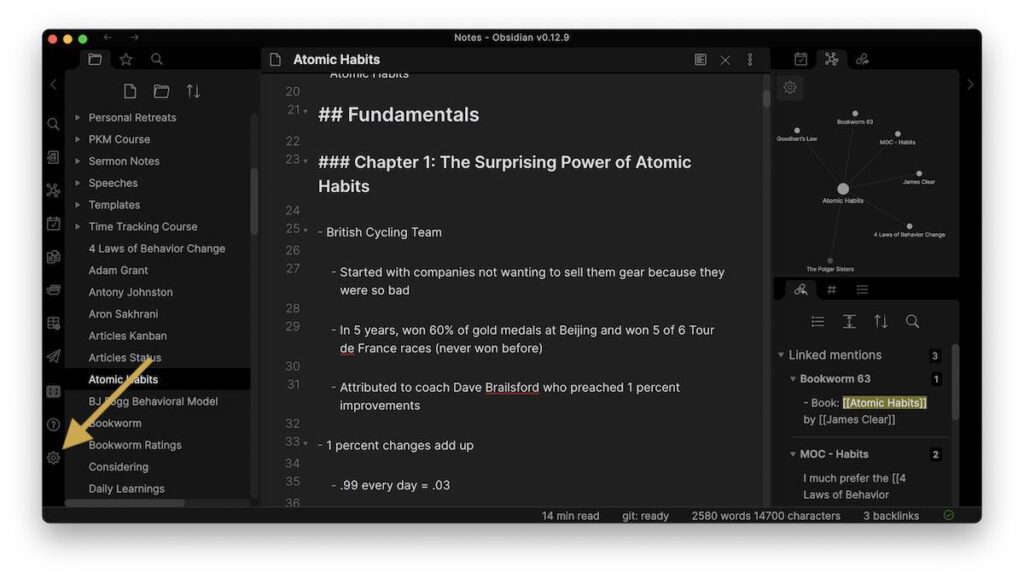
Other basics include sorting notes by name, creation date, or last modified; simple #tags for quick categorization; and split-screen mode to view multiple notes side by side.
The quick switcher (Cmd/Ctrl + O) lets you search and jump to any note instantly. Even better is the command palette (Cmd/Ctrl + P)—it’s like a searchable command center for hundreds of actions, from following links to renaming files or tweaking settings.
A lot of other apps are starting to copy these shortcuts because they’re so efficient.
The beauty of Obsidian is its flexibility: use as much or as little of this as you want. If the built-in stuff isn’t enough, plugins can add way more organization superpowers. It’s all about building a system that fits you.
Working With Notes in Obsidian: Plain Text All the Way Down
This is one of Obsidian’s biggest strengths: your entire vault is literally just a regular folder full of .md (Markdown) files. No proprietary database, no hidden formats—just plain text documents you own completely.
That means you can open, browse, or edit your notes with any text editor, without even launching Obsidian.
Make a change in something like VS Code, Notepad, or Vim, save it, and Obsidian reflects it immediately. It’s incredibly liberating.
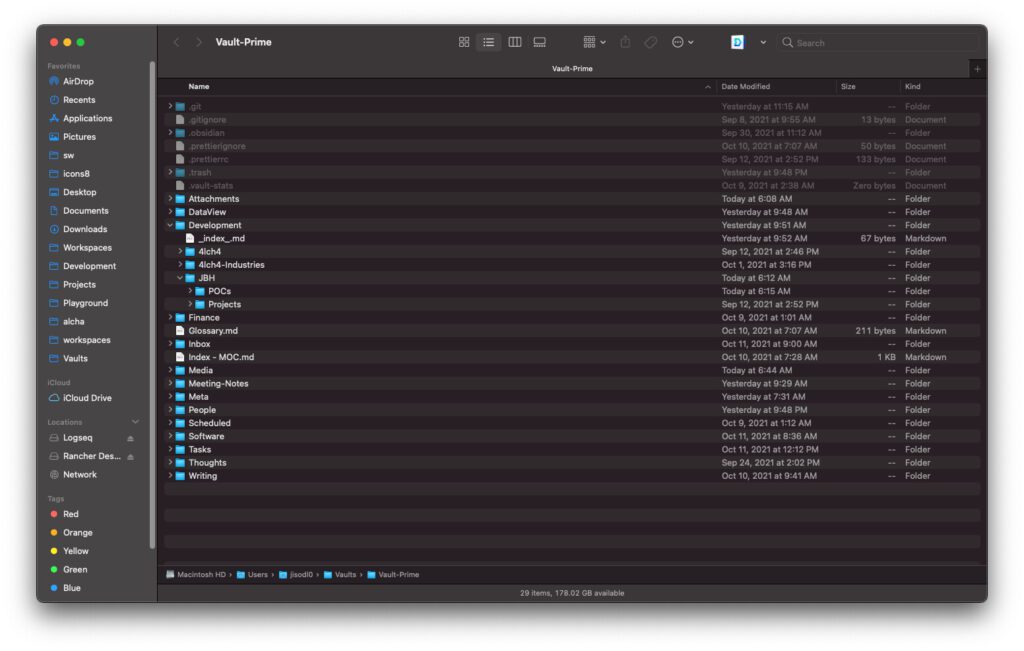
Why does this matter? Peace of mind. Your notes are future-proof—if Obsidian ever goes away (unlikely, but hey), or you just want to switch apps, everything is already in a universal, open format. Migrating is as simple as copying the folder. No messy exports required.
Plus, syncing is totally up to you: drop the vault folder into Dropbox, iCloud, Google Drive, OneDrive, Syncthing—whatever you already use—and it just works. No need to pay for Obsidian’s official Sync unless you want their end-to-end encryption and version history.
Over time, Obsidian has gotten really creative with what plain text can do. Features like Canvas let you create visual mind maps or boards directly from your notes.
And with community plugins like Dataview (now evolving into the built-in Databases feature), you can turn those simple text files into powerful, queryable databases—think dynamic tables, task lists, or even calendars pulled from your notes.
You can dive deep into that if you want advanced stuff, or completely ignore it and keep things simple. Either way, your data stays portable, private, and yours forever. It’s a level of ownership most note apps just don’t offer.
Plugins and Themes: Obsidian’s Greatest Superpower
One of the things that truly sets Obsidian apart is its massive plugin ecosystem. As of late 2025, there are over 2,700 community plugins available—everything built and maintained by passionate users. You can browse and install them directly in the app’s settings or on the official Obsidian website.
These plugins let you add pretty much any feature you can think of. For example:
- The Kanban plugin turns a simple Markdown note into a full-fledged Trello-style board, complete with drag-and-drop cards and lanes.
- Calendar plugins (like the simple Calendar or more advanced Full Calendar) give you a visual daily/weekly/monthly view right in your sidebar, perfect for journaling or spotting patterns in your daily notes.
- Mind mapping fans can use Canvas (now a core feature) or dedicated plugins to turn outlines into interactive visual maps.
- Powerful task management comes from plugins like Tasks, which lets you query and display checkboxes from across your entire vault with due dates, priorities, and more.
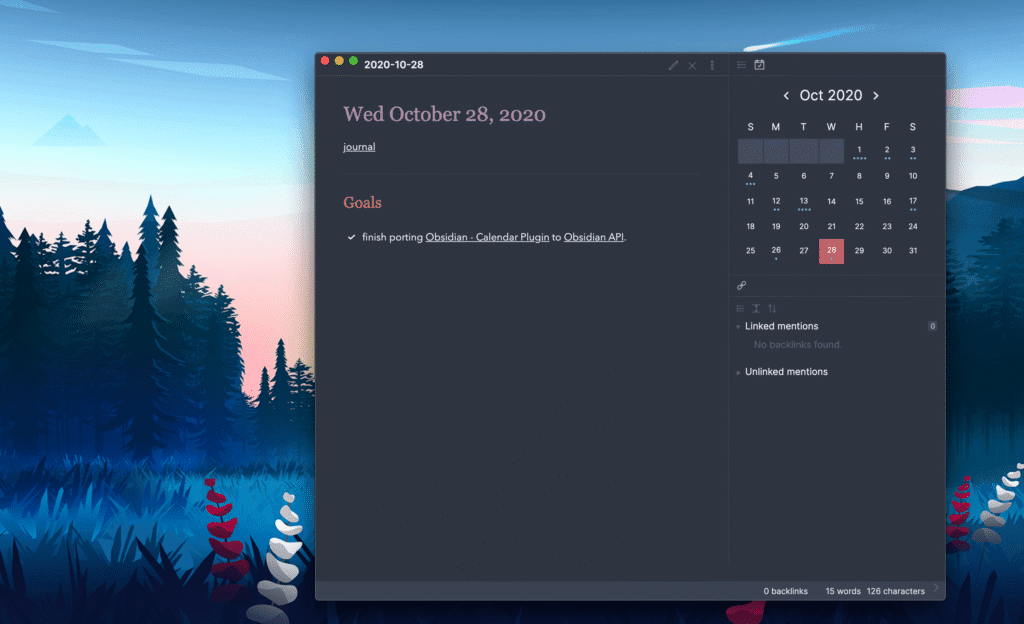
Other popular ones embed YouTube videos or tweets directly, add audio recording, create flashcards, or even integrate AI tools.
And then there are themes—hundreds of them to completely change Obsidian’s look, from minimalist and clean to vibrant and colorful.
I could go on forever listing favorites—seriously, the possibilities are endless. If there’s a feature you wish your note-taking app had, chances are there’s a plugin (or combo of plugins) for it. This level of extensibility and customization is unmatched in any other app I’ve tried. It’s what turns Obsidian from a great note-taker into whatever you need it to be.
Web Clipper and Importing: Surprisingly Powerful
Obsidian’s browser extension (officially called Obsidian Clipper) is one of the best I’ve used in any note-taking app. It works in Chrome, Edge, Firefox, and Safari, and it’s dead simple: click the icon, and it instantly grabs a clean, readable Markdown version of the current webpage.
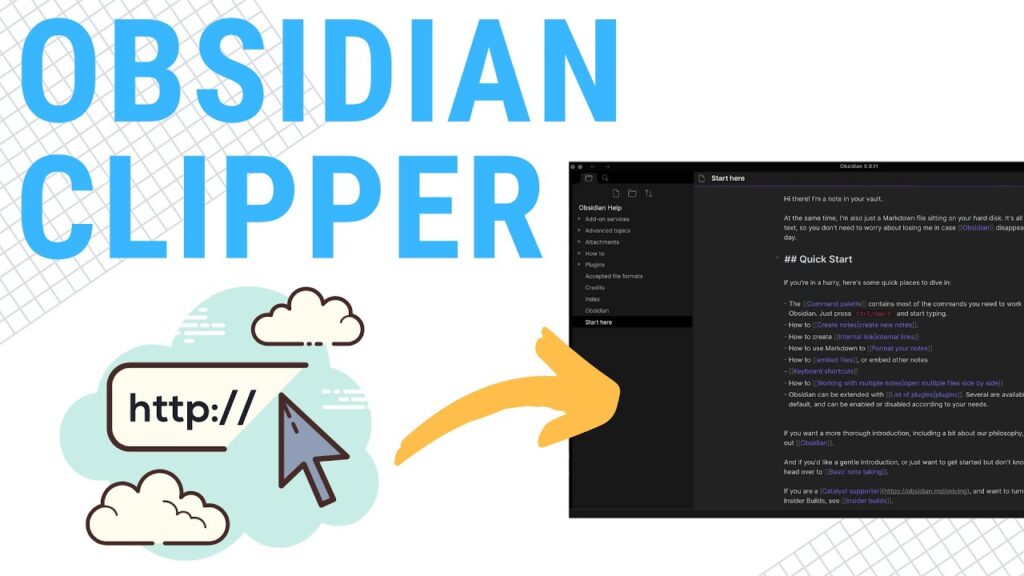
You choose which vault and folder to save it to, and it automatically adds useful metadata—like the original URL, author (when available), title, and the exact date you clipped it—right at the top of the note. Images, headings, and formatting all come through nicely without the usual web-page clutter.
Even better, there’s a built-in highlighter: before saving, you can select just the paragraphs or sections you actually care about, and it’ll clip only those. Perfect for pulling quotes or key points from long articles without dragging in ads or sidebars.
On top of that, Obsidian has strong import tools. It can directly pull in your entire library from apps like Apple Notes, OneNote, Bear, or even Evernote exports—something very few competitors can match. Once imported, everything becomes plain Markdown files in your vault, ready to link and organize however you want.
Between the smart clipper and solid importers, getting content into Obsidian feels effortless, which is a huge win for anyone building a big knowledge base over time.
Mobile Apps: Full-Power Obsidian on the Go
What really impresses me about Obsidian is how well the mobile apps hold up—they’re not watered-down companions to the desktop version. Both the iOS and Android apps bring virtually every desktop feature along for the ride, including full plugin and theme support. That’s rare in note-taking apps; most mobile versions feel like an afterthought with big compromises.
I’ve spent time with it on an Android phone and an iPad, and the experience is remarkably consistent across devices. The interface adapts nicely to touch: you can swipe through sidebars, pinch to zoom in the graph view, and everything feels responsive.
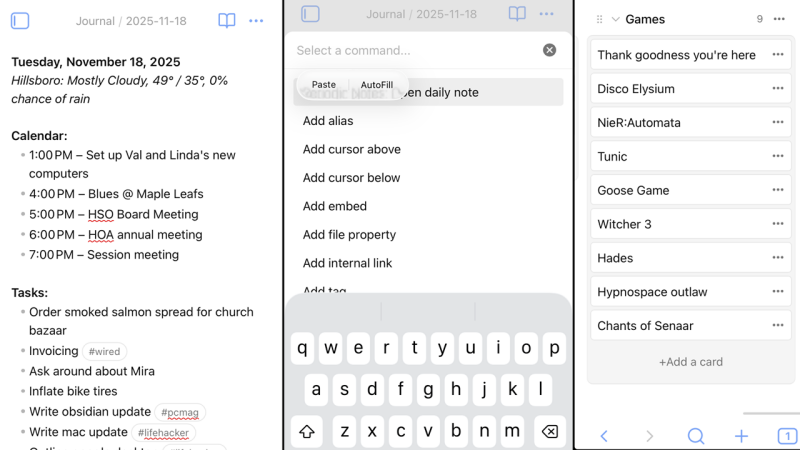
Key mobile-friendly touches include:
- Pull down from the top of the screen to open the command palette—just like Cmd/Ctrl + P on desktop.
- A customizable toolbar that pops up above your keyboard for quick Markdown formatting (bold, italics, lists, links, etc.) or any other actions you want to add. You can rearrange or remove buttons to match exactly what you use most.
- Full access to your vaults, whether synced via iCloud, Google Drive, Dropbox, or Obsidian Sync.
Because your notes are just local files, working offline is seamless, and any changes sync up automatically once you’re back online. Plugins work great too—I’ve run Kanban boards, Dataview queries, and even advanced themes without issues on mobile.
It’s genuinely impressive how little is sacrificed on smaller screens. If you’re someone who captures ideas on your phone and refines them on a computer (or vice versa), Obsidian makes that workflow feel completely natural—no feature gaps, no re-learning different tools. For power users especially, this parity between desktop and mobile is a game-changer.
Missing Features: What Obsidian Doesn’t Do (and Why It Might Matter)
Obsidian is fantastic for solo power users, but it deliberately skips some features that many people now expect from a modern note-taking app.
No Collaboration Whatsoever. Obsidian is strictly a single-user, local-first tool. There’s no real-time co-editing, no commenting, no sharing notes with view-only links (outside of the paid Publish add-on), and no way for multiple people to work in the same vault simultaneously. If you need to brainstorm with a team, share notes with family, or collaborate on projects, you’ll have to look elsewhere—OneNote, Evernote, Notion, or Google Keep handle group work much better.
No Built-In Handwriting or Scanning. There’s zero native support for handwriting (no Apple Pencil or stylus integration) and no built-in scanner or OCR for turning photos of documents or whiteboards into searchable text. You can work around this with third-party apps (scan to PDF, then drop the file into your vault), and there are several excellent community OCR plugins that do a decent job, but it’s never as seamless as what you get in OneNote, GoodNotes, or Evernote.
No Official Web App: Obsidian doesn’t have a browser-based version you can just open from any computer. If you’re away from your devices and need access, you’re out of luck unless you’ve set up a workaround. Some options exist:
- Apple users can sync via iCloud and open individual Markdown files in the web version of Pages on iCloud.com.
- Others use tools like Syncthing, Resilio Sync, or even a self-hosted solution (like Obsidian Remote or third-party wrappers) to get browser access.
These workarounds are powerful and give you a lot of control, but they’re undeniably more complicated than just logging into a web app like Notion or Evernote.
In short, Obsidian makes very intentional trade-offs: it prioritizes privacy, ownership, speed, and customizability over convenience features like collaboration, handwriting, and universal web access. For a lot of people—especially writers, researchers, students, or anyone building a long-term personal knowledge base—those trade-offs are worth it. For others who need team features or effortless cross-device access without tinkering, it can be a deal-breaker. Know what you need before diving in.