You’ve used ChatGPT for writing and coding, but did you know it can now be your personal AI artist? The ability to generate images directly within ChatGPT is one of its most exciting features. If you’re wondering how to turn your ideas into stunning visuals, you’ve come to the right place. This comprehensive guide will walk you through exactly how to generate AI images using ChatGPT, from basic commands to advanced prompt engineering techniques.
At a Glance: How ChatGPT Creates Images
The Engine: ChatGPT uses OpenAI’s DALL-E 3, a state-of-the-art image generation model, to create images.
The Access: This feature is available for ChatGPT Plus, Team, and Enterprise subscribers.
The Process: You describe what you want in natural language, and ChatGPT generates it, often with surprising creativity and quality.
Prerequisites: What You Need to Get Started
Before you can start creating, you’ll need:
A ChatGPT Plus, Team, or Enterprise subscription. (The free version of ChatGPT does not support image generation).
A Simple Step-by-Step Guide to Generating Your First AI Image
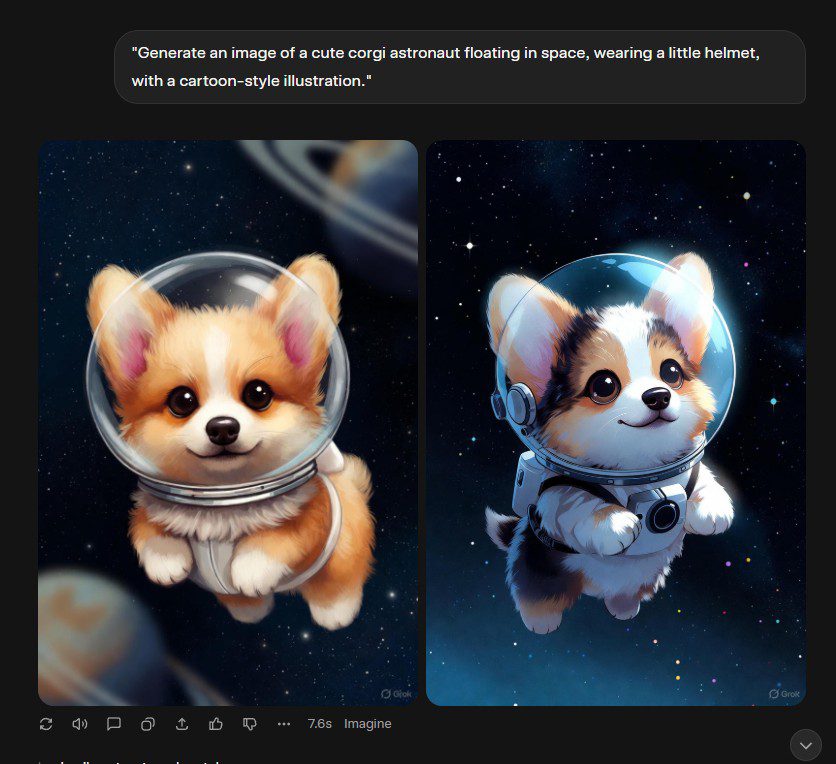
Let’s create your first AI artwork. We’ll generate a “cute corgi astronaut floating in space, in a cartoon style.”
Step 1: Craft Your Prompt Log in to your ChatGPT account and, in a new chat, simply type your request. The more descriptive, the better.
Your Prompt:“Generate an image of a cute corgi astronaut floating in space, wearing a little helmet, with a cartoon-style illustration.”
Step 2: Send and Wait ChatGPT will process your request. It understands the context and sends the instructions to DALL-E 3. Within a minute, you’ll see four image variations appear directly in the chat.
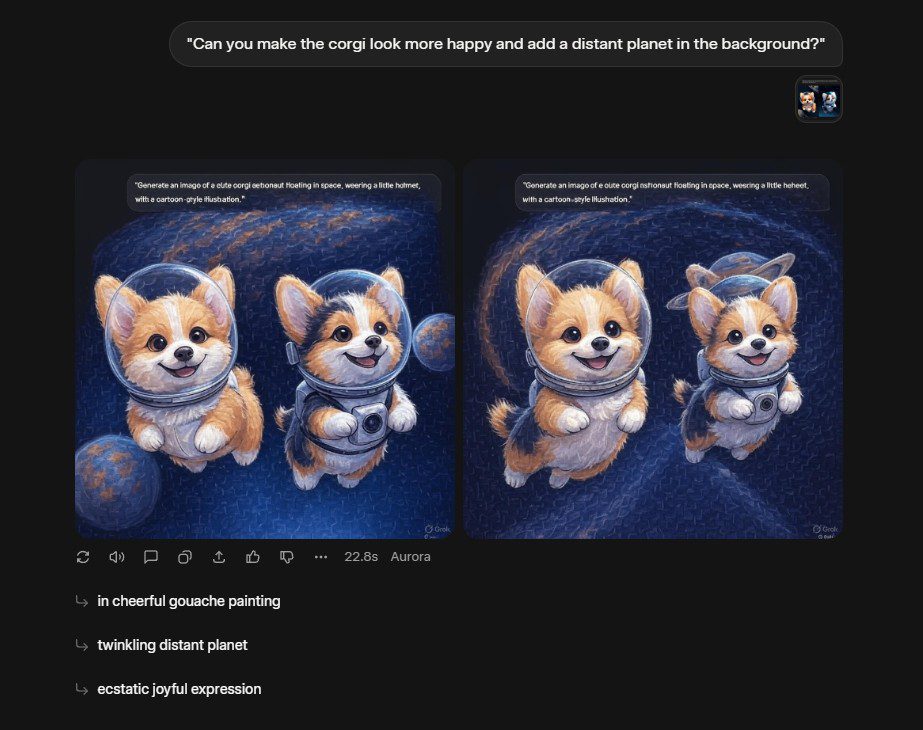
Step 3: Review and Refine Look at the four options. If you like one, great! If not, you can ask for changes.
Your Refinement Prompt:“Can you make the corgi look more happy and add a distant planet in the background?”
ChatGPT will generate a new set of images based on your feedback.
Beyond the Basics: Advanced Prompt Engineering for Better Images
The key to generating amazing AI images in ChatGPT is mastering the art of the prompt. Here’s how to go from basic to brilliant.
1. Be Specific and Detailed
Basic Prompt:A landscape.
Advanced Prompt:A majestic, photorealistic landscape of a misty mountain range at sunrise, with a crystal-clear lake in the foreground reflecting the peaks, cinematic lighting, 4k.
2. Define the Style and Medium
Tell the AI exactly how to draw it.
Art Styles:in the style of Van Gogh, anime style, watercolor painting, cyberpunk digital art.
Mediums:oil on canvas, claymation, 3D render, vintage photograph.
Example:A sleepy cat curled up on a stack of books, as a watercolor painting with soft, blended colors.
3. Control Composition and Lighting
Composition:close-up shot, wide-angle landscape, symmetrical composition, rule of thirds.
Example:A macro photograph of a dewdrop on a rose petal, with soft backlighting creating a prism effect.
4. Iterate and Refine with Conversation
The real power of using DALL-E 3 within ChatGPT is the conversational refinement. You don’t have to get it perfect on the first try.
“Make the character younger.”
“Change the color scheme to pastels.”
“Can you generate a version that looks like a vintage travel poster?”
What You Can (and Can’t) Do: Important Limitations
While powerful, ChatGPT’s image generator has rules:
You CAN: Create images for personal use, inspiration, concept art, social media, and marketing materials.
You CANNOT: Generate photorealistic images of real people (especially celebrities), create violent, adult, or hateful content, or infringe on copyrighted characters.
Pro Tips and Best Practices
Use a New Chat: For a new image concept, start a fresh chat session to avoid confusing the AI with previous context.
Leverage ChatGPT’s Knowledge: Ask ChatGPT for prompt ideas! Try: “Help me write a detailed prompt to generate an image of a steampunk library.”
Save Your Images: Click on any generated image to open it in a full-size view, then right-click to save it to your device.
Troubleshooting Common Issues
“I don’t see the image generation feature.” Double-check your subscription. You need ChatGPT Plus or higher.
“The images are blurry or distorted.” This can happen with complex prompts. Try simplifying your description or breaking it into multiple requests.
“ChatGPT refused my prompt.” Your prompt likely violated OpenAI’s content policy. Try a different, safer subject.
Conclusion: Your Creative Partner Awaits
Generating AI images with ChatGPT is more than a feature; it’s a creative partnership. You bring the idea, and ChatGPT brings it to life with stunning visual clarity. By mastering the art of the prompt and using the conversational interface to refine your results, you can unlock a world of visual storytelling, design inspiration, and pure creative fun.
So, what are you waiting for? Log in, start with a simple prompt, and watch your imagination become reality.